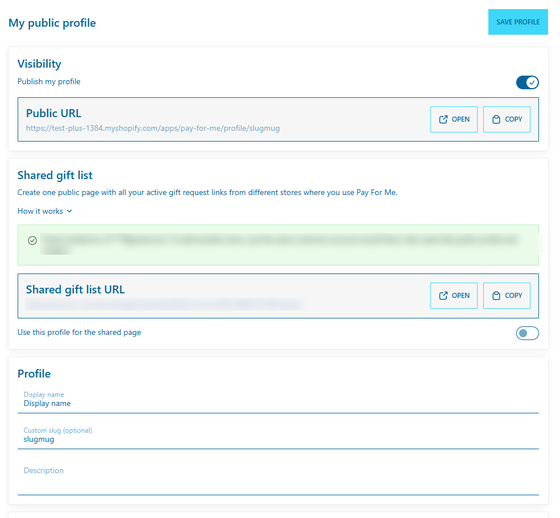
Getting started: install and set up
What you need
- Shopify gift cards available in your store (Gift cards).
- At least one product for sale with a price above zero.
- A theme that supports app blocks and app embeds (Online Store 2.0).
Set it up
- Install Pay For Me from the Shopify App Store.
- Turn on the app embed. Click Enable in theme editor, turn on "Gift request floating widget" under App embeds, and save.
- Add the button to product pages. Click Add to product page, add the "Gift request button" block to the product template, and save.
- Activate gift cards. Click Open gift cards in Shopify, create or activate a gift card once, then click Check status.
- Run the health check (see below).
- Activate a plan. Click Go to billing and confirm in Shopify. Then click Finish setup.
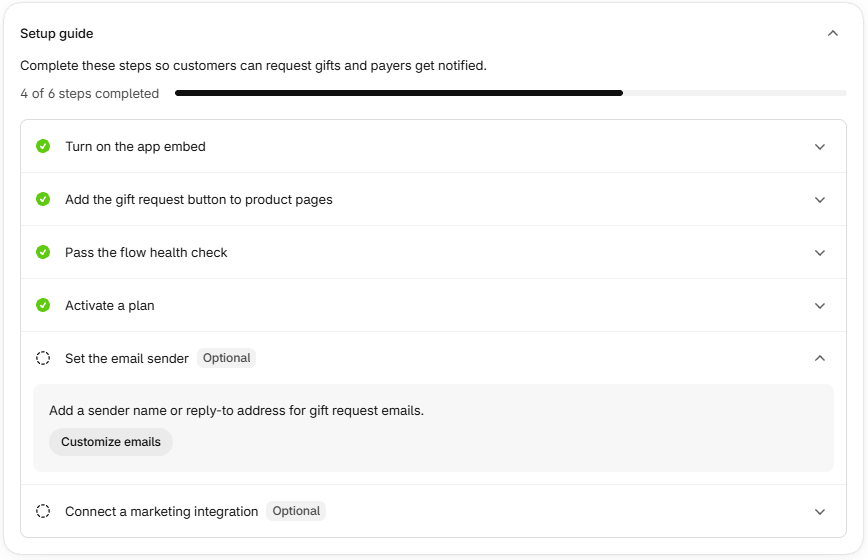
Run the health check
The health check runs a real test gift from start to finish, so you know that both the Shopify gift card email and the Pay For Me email work. It's free, doesn't need a plan, and leaves nothing on your Dashboard.
- Open Home → Setup guide → Open health check.
- Enter an email address you can read and a delivery address your store ships to.
| Result | What to do |
|---|---|
| Needs attention | Wait: the app is cleaning up test data and finishes on its own |
| Failed: no shipping method | Check your shipping zones and rates, or use another address |
| Failed: the Shopify gift card email didn't arrive or has no code | In Shopify, open Settings → Notifications → the gift card notification and make sure it includes the code |
Run it again whenever you change shipping, gift cards, or the Shopify gift card email template. A pass means the email service accepted the email, not that it reached the inbox. The test gift card stays in Shopify, disabled, because Shopify doesn't allow deleting cards.
Choose your plan
There is no subscription fee. You pay 1% of each paid gift on your Shopify invoice, up to a cap per 30-day cycle. Gifts above the cap work as usual and aren't billed. The plan is picked automatically from your Shopify plan.
| Pay For Me plan | Shopify plan | 30-day cap, USD |
|---|---|---|
| Pay For Me Basic | Basic, Starter, Lite, Trial, Development, and others | 1000 |
| Pay For Me Grow | Grow | 2500 |
| Pay For Me Advanced | Advanced, Retail | 5000 |
| Pay For Me Plus | Shopify Plus | 10000 |
Development stores run in test mode and aren't charged.
- Without a paid plan, the button is hidden and payment links for open requests are paused, not canceled. They work again once you activate a plan.
- A gift paid without a plan is billed if you activate a plan within 60 days, and never after that. A full refund before the fee is charged cancels the fee; if it was already charged, Pay For Me support refunds it.
If shoppers don't see the button
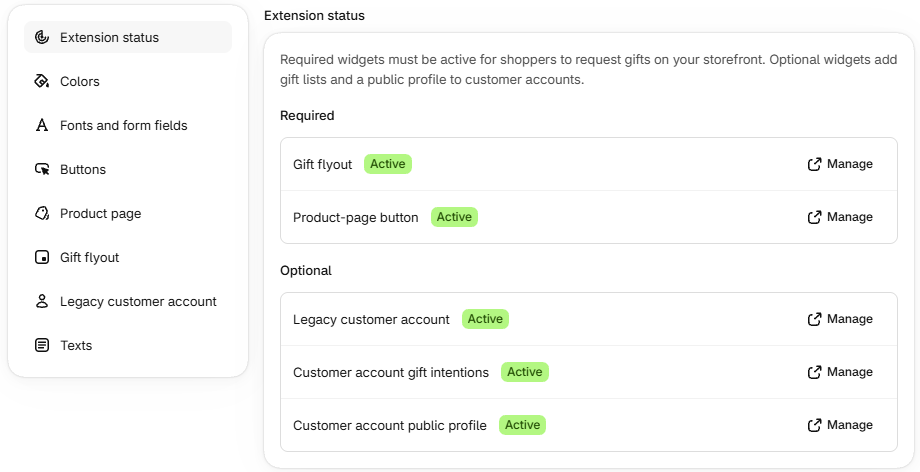
- The app embed or the product block is off. Check Settings → Extension status.
- The button is limited to logged-in customers or customers with a tag. With "Customers with a tag" and an empty tag, no one sees it.
- You edited an unpublished theme, or didn't save.
- The product is out of stock.
Messages a shopper may report:
- "Some selected products can't be added to a gift request": the product is inactive, not sold in the Online Store, subscription-only, or a gift card.
- "We can't ship these products to that address": no shipping method covers these products and this address. Check your shipping zones.
- "This request total is too high for a payment link": the total is above your store's maximum gift card value.
- "Payment links are temporarily unavailable for this store": Shopify didn't allow the payer's card or order to be created. Check gift cards and run the health check.
What to configure
One set of appearance settings covers every widget, and the theme editor blocks have no settings of their own: you only choose where they go.
Currencies and languages
- Storefront and email languages. Add any language your store publishes under Settings → Texts; empty fields show English.
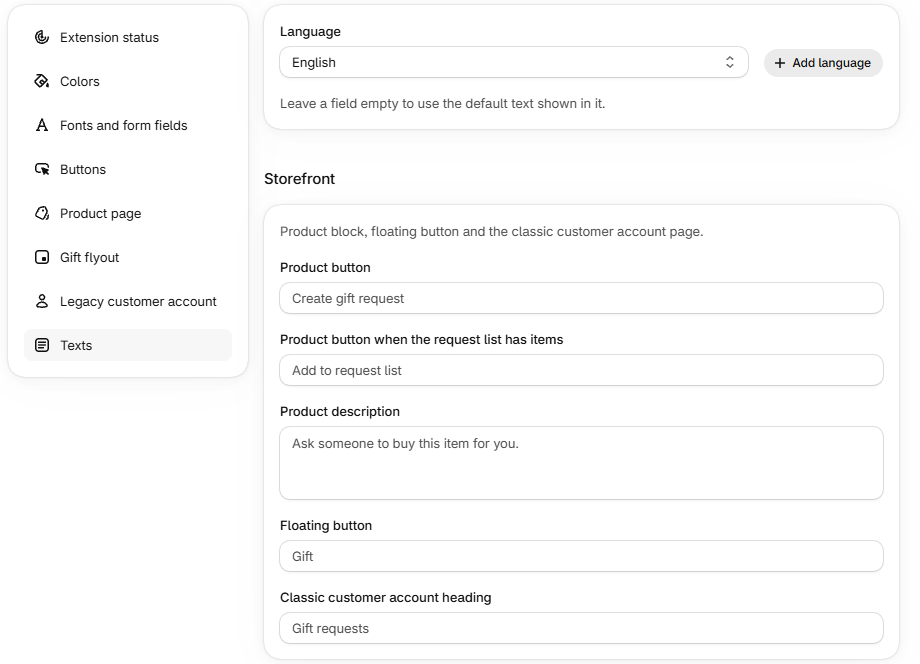
Public gift pages (optional)
To offer them in new customer accounts, open Settings → Extension status and click Manage next to Customer account gift intentions (the requests list) and Customer account public profile, then add them in Shopify's customer account settings. In the classic account, add the "Gift requests for account page" block in the theme editor. What shoppers get: For shoppers: your account and public profile.
Orders in Shopify
Each gift creates two linked orders, so the payer never sees the items or the address.
| Gift card order | Products order | |
|---|---|---|
| Who pays | The payer | The recipient, with the gift card |
| What's inside | One gift card for the total | The recipient's products, address, and shipping |
| Tags | pay-for-me, pfm-role-payer | pay-for-me, pfm-role-recipient |
| Your action | None | Fulfill it like any order |
When a shopper creates a request, two drafts appear in Draft orders.
Good to know
- Inventory isn't reserved for a request. Prices are fixed when the request is created, and discounts don't apply.
- A request holds up to 50 different variants, 1 to 100 units each.
- If the recipient spends the card on a different order, the request stays "Paid".
- Refunds. Refund the payer in Shopify as usual. After a full refund, the app doesn't send the code (if it hasn't gone out) or disables the unused card. Partial refunds, already spent cards, and refunds not completed within 72 hours need your attention, and you get an email. The app never refunds on its own and never issues a replacement card. A refund on the products order works the standard way.
Recovery incidents: when the gift card code didn't arrive
Rarely, the payer pays but the app doesn't get the gift card code from Shopify. The app asks Shopify to resend the email after 15 minutes and after 1 hour. If there's still no code after 24 hours, an incident opens: you get an email and a red banner on Home. Automatic attempts continue every 6 hours.
- Open the incident and click Retry now.
- If that doesn't help, either refund the payer and disable the original card, or hand the gift over manually.
- Record the outcome (Payer order refunded or Gift handed over manually), add a short note with no personal data, and click Close incident.
Don't issue a replacement card yourself: the original may still be active. If incidents repeat, check the Shopify gift card email template and run the health check.
Pay For Me also emails you (at the store's contact email, or the owner's) when something needs action.
| Email subject | What to do |
|---|---|
| Pay For Me: Shopify gift card email template needs attention | Check the notification template, run the health check |
| Pay For Me: gift card notification was not delivered | Fix the integration or turn on the fallback email on Integrations |
| Critical: refunded Pay For Me gift card needs review | Check the order and the card (partial refund or spent card) |
| Critical: duplicate Pay For Me payment needs review | Check both orders and refund the extra payment |
| Critical: Pay For Me payment does not match its gift request | Check the order and refund it; no card was issued |
| Critical: payer Order changed during gift fulfillment | Check the order and disable the issued card |
| Pay For Me: usage billing needs attention | Make sure the subscription is active; the charge is retried automatically |
| Pay For Me: refunded payer Order has an existing usage charge | Contact support |
| Critical: a redacted Pay For Me payment needs review | Don't uninstall; check refunds and contact support |
Uninstalling
Once uninstalled, the app can't close the payment links it sent out, so close them first. This cancels all open requests, so do it only right before you uninstall.
- Open Billing → Before uninstalling Pay For Me.
- Click Close open payment requests and confirm.
- Click Continue closing until you see "No known open payer checkouts remain".
- When all counters on the page are zero, uninstall.
Issued gift cards and created orders stay in Shopify. Your store's Pay For Me data is kept for 29 days in case you reinstall, then permanently deleted.
Shopper data requests from Shopify are handled automatically. An export is prepared encrypted and kept for 24 hours, not emailed; if the shopper needs a copy, contact Pay For Me support. A deletion closes the shopper's open links and deletes their requests and profile; profile images stay in your Files until you delete them.
Admin pages
Home
- Reach support at support@pay-for-me.app.
Dashboard
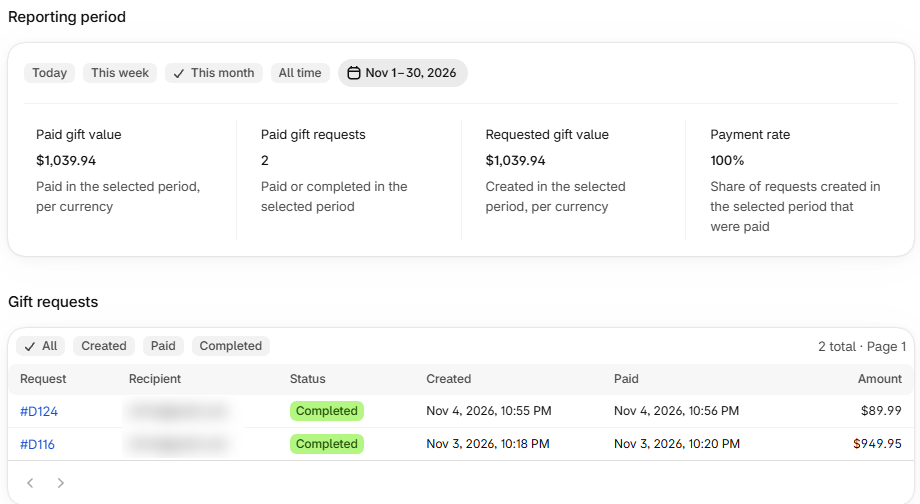
- Days follow your browser's time zone.
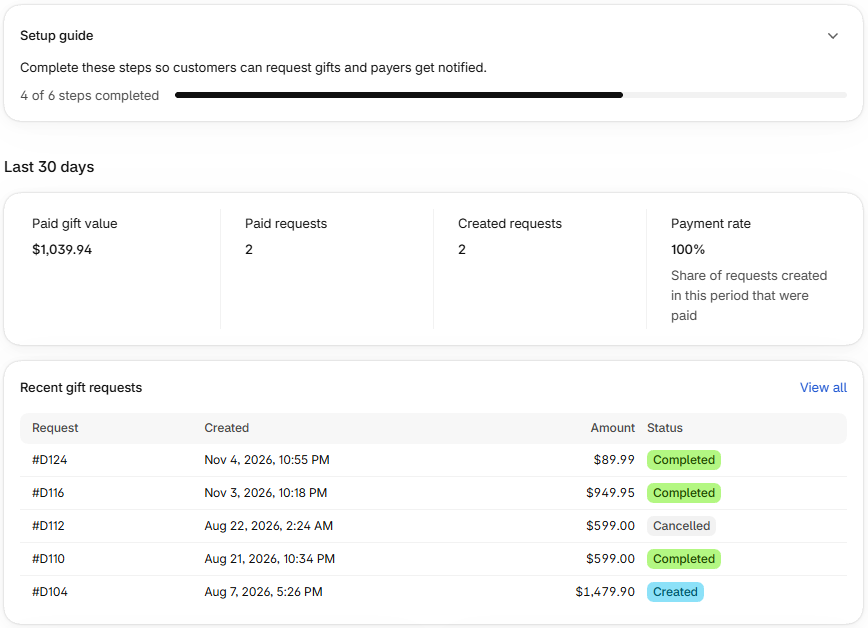
- Payment rate: the share of requests created in the period that got paid.
The request list shows requests created in the period, so its paid rows can differ from the metrics.
Settings
- Check what's live on your storefront (Extension status).
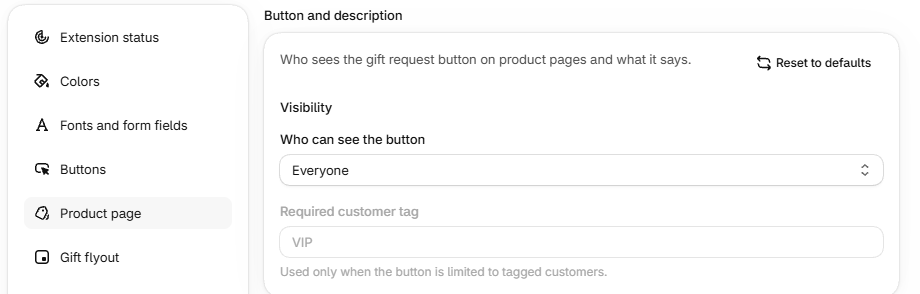
- Choose who sees the product page button (Product page). A tag must match exactly, including capitalization. The floating button and the request panel don't depend on it.
- Style every widget to match your store on Settings (a theme or system font; no font uploads), including the classic account requests page under Colors → Legacy customer account.
Emails
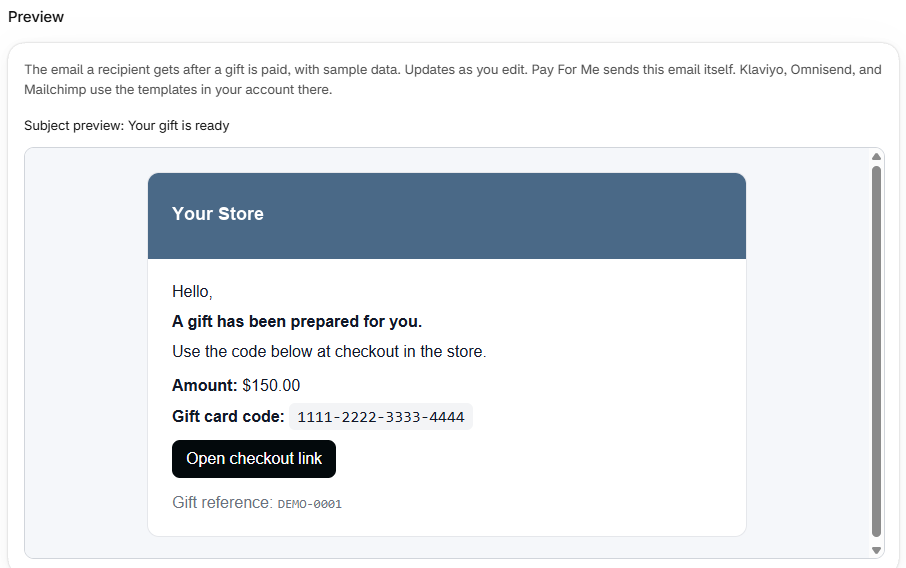
Brand the email with the gift card code that Pay For Me sends.
- Branding, texts per language, sender name and reply-to are all on Emails. At install, the app copies the branding once from Shopify's brand settings.
- Reminders reuse the email texts; in the reminder subject,
{number}is the reminder number and{subject}the main subject.
If you delete the logo file from Files, it disappears from emails. Emails sent through Klaviyo, Omnisend, or Mailchimp use those services' templates.
Integrations
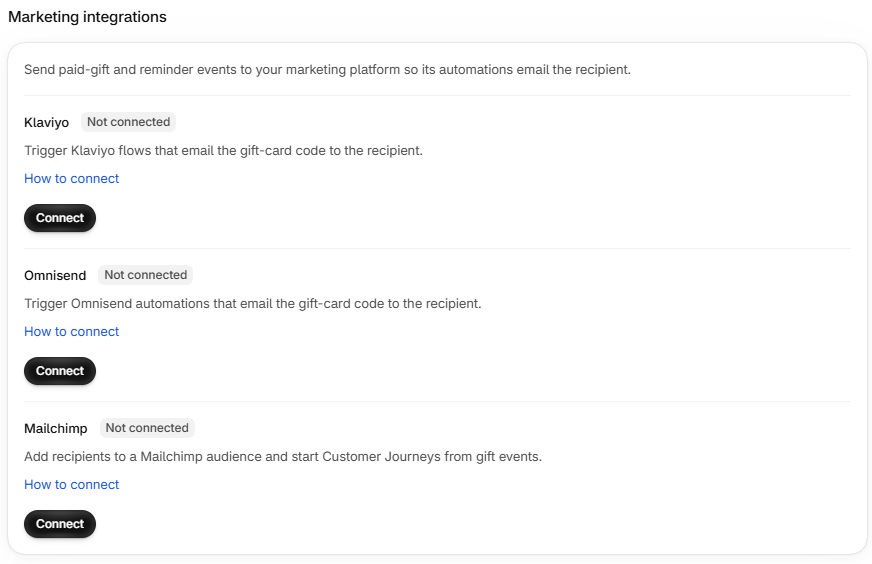
Send the gift email from Klaviyo, Omnisend, or Mailchimp: Pay For Me sends an event when a gift is paid, and your automation sends the email. You can connect several; each gets the event.
- Click How to connect for your service and follow the steps.
- Click Connect, paste the API key (Mailchimp also needs the List ID; Datacenter can stay blank), and click Connect. Mailchimp's List ID isn't verified, so double-check it.
- In the service, create an automation on the
GiftIntentPaidevent that sends the gift card code, amount, and checkout link. For reminders, add one onGiftIntentReminder. - Test with a real gift request: the event appears only after the first paid gift, and the health check doesn't go through integrations.
- Disconnect erases the credentials but leaves contacts and events in the service.
- The service gets only the recipient's email, the amount and currency, the gift card code, and the checkout link.
- Send the Pay For Me email if integrations fail sends the Pay For Me email when no integration accepts the event. When it's off and delivery fails, the recipient gets nothing and you're notified. With no active integration, Pay For Me always sends its own email.
- The app only checks that the service accepted the event; delivery to the inbox depends on your automation.
What you can't change
- The floating button's position and icon, and the How it works link text.
- Panel and new customer account texts other than the editable fields (they ship in English, German, Spanish, French, and Japanese).
- The request lifetime (30 days) and reminders (up to 3, about every 72 hours).
- The address emails are sent from.
How shoppers create a gift request
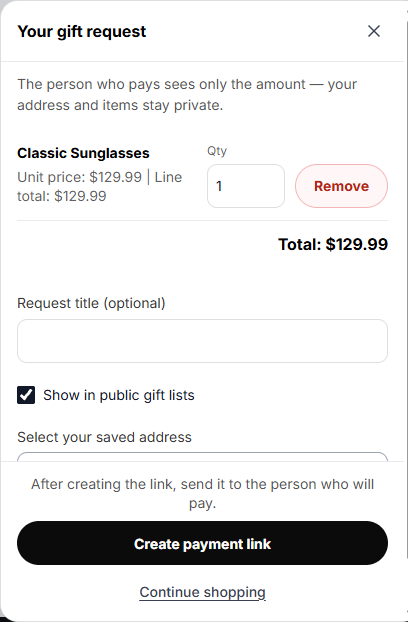
A shopper picks items as usual, clicks Create gift request instead of checking out, and gets a payment link to send to whoever pays. The payer sees only the amount, never the items, address or email.
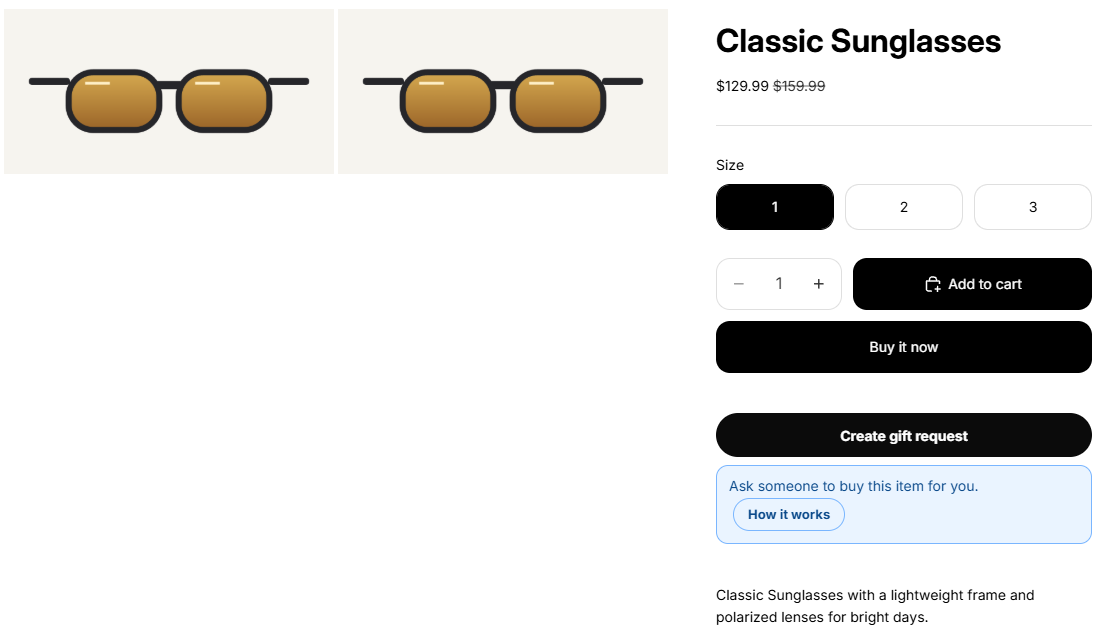
- On a product page the shopper chooses options and quantity and clicks Create gift request. More products go into the same request; the floating Gift button reopens it.
- In Your gift request they can keep the request off their public page by clearing Show in public gift lists.
- Create payment link gives them a link to copy and send.
Good to know
- Items and address are fixed once the request is created; to change them, the shopper creates a new one.
- Guests see the link only once, so they should copy it right away. Signed-in shoppers also find it in their account.
- Up to 50 different items per request, up to 100 of each. Prices lock when the request is created, and discount codes don't apply.
- The payer pays in your store's main currency. Shoppers browsing in another currency see an estimate marked "≈".
- If a shopper doesn't see the button, check who it is shown to (Settings → Product page) and that the item is in stock.
How payers pay
The payer opens the link and lands in your checkout with one line: a gift card for the request total. They pay as for any order. The gift card code goes to the shopper by email, not to the payer.
Good to know
- One payment per link; the amount can't be changed or split.
- The link works for 30 days or until the shopper cancels the request.
- If the payer paid just as the request was canceled or expired, the payment still counts and the shopper gets the code.
- Refunds go through you as for any order. After a full refund, an unused gift card is disabled.
- "This payment link is no longer active" means the request was paid, canceled or expired; the shopper can create a new one.
How shoppers get the code and place the order
Once the gift is paid, the shopper gets an email with the gift card code and a link back to checkout with the chosen items. The order isn't placed automatically: the shopper pays with the code, and the order arrives in Shopify like any other.
Good to know
- The shopper pastes the code into the gift card field at checkout; the link doesn't apply it.
- The card can pay for any order in your store, so a sold-out item isn't a dead end. Items aren't reserved.
- If the order costs more than the card, the shopper pays the difference; if less, the rest stays on the card.
- Until they order, shoppers get up to three reminders with the same code, about every 3 days.
- No email after 15 minutes? Ask them to check spam and the address they entered; signed-in shoppers also see the code in their account. A delayed code shows up as a recovery incident for you.
Shopper accounts and gift pages
Signed-in shoppers manage their requests in their customer account: copy the link, rename or cancel a request, copy the code once it's paid, and complete the order. The Gift requests page appears in new customer accounts, or as a block on the classic account page, once you add it under Settings → Extension status.
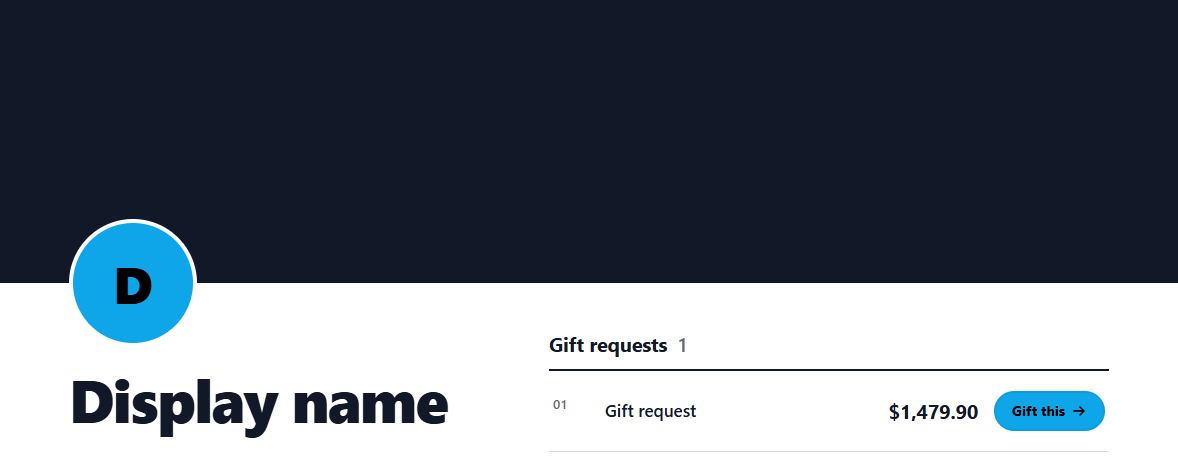
They can also publish a public gift page with their name, photos, links and open requests, and share one link with their audience; see Gift pages above. With the Shared gift list, a shopper who uses Pay For Me in several stores gathers all their open requests on one page.
Good to know
- A paid request can't be canceled, and a canceled one can't be restored.
- Requests created as a guest don't appear in the account.
- Shoppers' email, address, phone, paid requests and codes never appear on their public page. What they type into the profile and request titles is public.